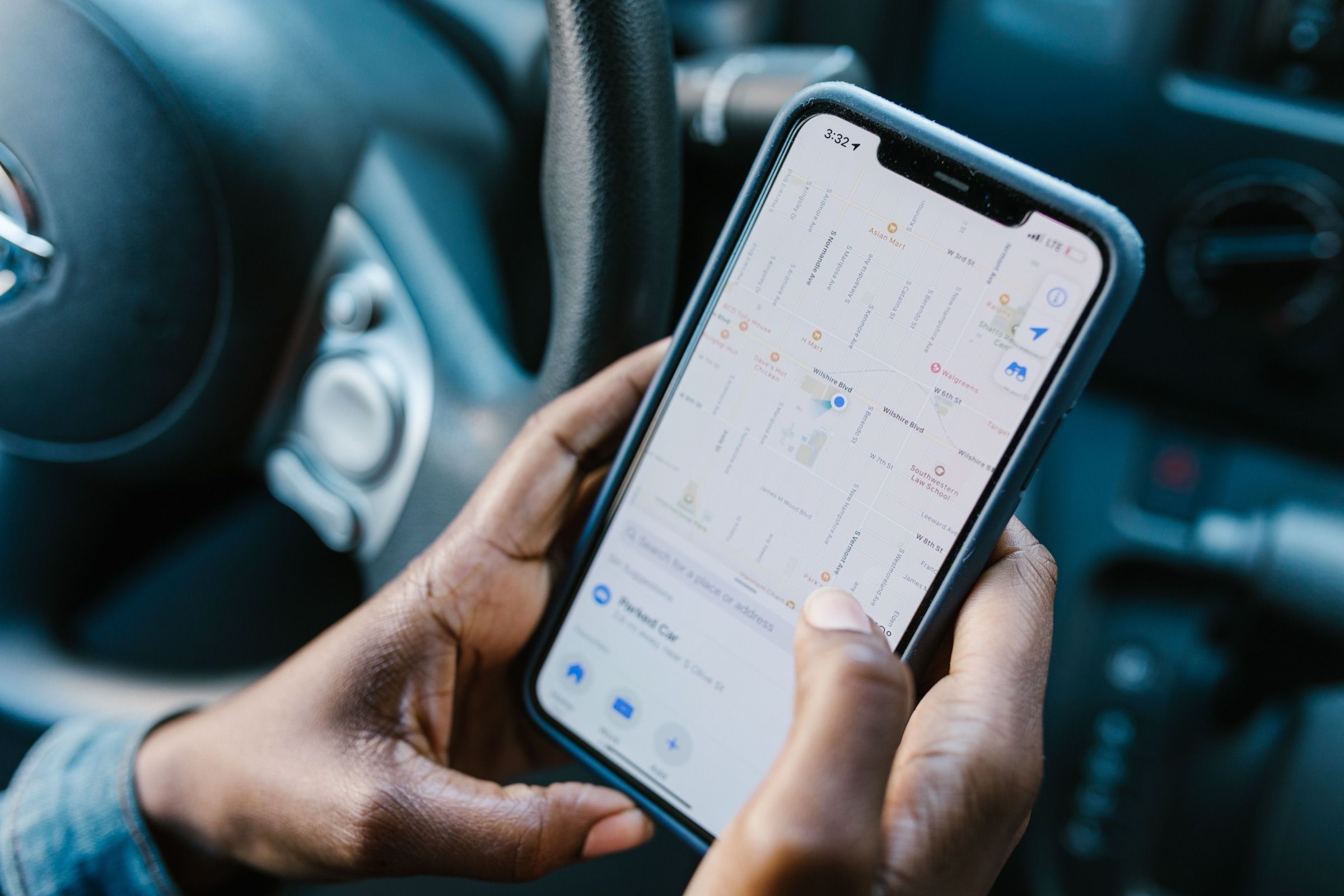
If you work from home and drive to your customers, this guide is set up for you. It walks you through adding or fixing your listings on Google, Apple and Bing maps, hiding your home address where you can, and keeping your details the same everywhere. When they match, a homeowner nearby can find the right business and the right number.
Use the same name, address, phone, website and hours everywhere
Start with your own website. Get your business name, address, phone, website and hours right there first, then copy them exactly into each listing. Each platform leans on that match:
- Apple wants any location you add to match your official website: name, address, phone and hours.
- Bing checks what owners send against search engines, websites and social media. It recommends “keeping your business name, address, phone number, website, and other key details consistent and up to date across all of your online channels.”
- Google gathers info from other sources, like user reports, and may update your profile if those sources say your details are wrong or out of date.
A few habits make this easy:
- Write your details down once, the way they appear on your website
- Spell your business name the same way on every listing
- Use a phone number your business controls, and the same one everywhere
- When something changes, fix your website first
Google: add or claim your profile, then set a service area
Google says a business can have a profile if it “travels to customers where they are.” If you drive to your customers, set your profile up as a service-area business. Here’s how.
Start by adding or claiming your business
Use Google’s page for adding or claiming a business, or find your business on Google Maps and choose “Claim this business.”
Hide your address and add the areas you serve
If customers don’t come to you, Google says “you should hide your business address from customers.” You keep one profile for your base, with a service area around it.
- Go to Edit profile, then Location, then Service area
- Add up to 20 areas, by city, postal code or similar
- Keep them within “about 2 hours of driving time” of your base
- List areas by name, since Google doesn’t use a radius
Google says service area edits “may take up to 48 hours to show on your Business Profile.”
Use your real business name and keep the details plain
Google wants your business’s real-world name, with no extra information added to it. The rest follows the same idea:
- Phone: one under your business’s direct control
- Website: one that represents your business
- Hours: your regular hours for customers, or none at all if you work by appointment only
- Categories: as few as you can, each as specific as you can
Verify your profile
Google decides which ways your profile can be verified. They can include a code by phone or text, email, a live video call, or a postcard with a 5-digit code. Google says “Most codes arrive within 14 days.” While you wait for a postcard, don’t change your name, address or category.
Once you finish, Google says to “wait up to 5 business days to be verified.”
Check your profile after every change
Google checks every change before it goes live. Most checks take up to 10 minutes, but Google says “sometimes it can take up to 30 days.” It may not approve a change it can’t confirm.
Google can also change your profile on its own, based on other sources. Those changes show in blue in your profile editor, so open your profile after any change and check it.
Google says complete, accurate details help you show up
Google says “Businesses with complete and accurate info are more likely to show up in local search results.” It also says “There’s no way to request or pay for a better local ranking on Google.” Read Google’s rules for business profiles.
Apple: set up your brand, and think before adding a home address
Apple says “Apple Business Connect is now Apple Business.” Sign up at Apple Business. Apple lists Canada for managing your brand and locations.
Set up your brand even with no storefront
Apple said in 2024 that businesses that provide a service or have no physical location can register to create a brand identity. Once signed up, businesses “can begin to customize their brand for free.”
A location is different. Apple’s address field is for “the address of your location where customers can get goods or services during open hours.” Apple’s guide doesn’t describe a way to hide an address or set a service area. If you work from home, you can set up your brand without adding a location. Think carefully before adding your home address as one.
Verify your business
Apple asks for two of these within 60 days:
- A business number, such as a D-U-N-S number
- A DNS record on your website’s domain
- An app in the App Store
- An official document, such as a business licence or a utility bill
Apple says its review “can take up to five business days.”
Match any Apple location to your website
- Address: “The address officially listed on your website”
- Name: the one on your storefront or website, with no extra text
- Phone: the one on your official website
- Website: it “can’t be a third-party website”
- Hours: they should match the hours on your official website whenever possible
Read Apple’s rules for location details.
Bing: claim your free listing and hide your address
Bing Places for Business is free and works for Canada. You can claim a listing that’s already there or add a new one. Sign in with a Microsoft, Google or Facebook account.
Bing says “all businesses must provide a valid address for verification, service providers can hide their address from search results.” So you give Bing your address, then choose to hide it.
Import from Google, but fix Google first
Bing can import a linked Google Business Profile and keep it in sync. Bing says “If listings are matched, Bing will use Google data to overwrite the Bing Places for Business listing information.” Get your Google profile right first, because that’s what Bing will copy. Read Bing’s help for businesses.
ChatGPT: a new business listing, still in beta
OpenAI launched Businesses in ChatGPT in beta on 10 November 2026. Through Business Hub, a business can claim its listing and, “once verified, update key details.” OpenAI says “Any eligible business located where ChatGPT is available can claim their business.”
Business Hub also shows totals for how often your business is mentioned and how many clicks go to your website. OpenAI says these totals only show once there are enough conversations or interactions. Start from OpenAI’s announcement of Business Hub.
Keep it consistent: check each listing against your website
When one listing is out of date, fix that one so it matches your website.
- Open your website and each listing side by side
- Check the name, address, phone, website and hours on each one
- If you work by appointment only, leave hours off Google and keep your website and other listings saying the same thing
- Fix any listing that doesn’t match
- Check them all again after you move, get a new number or change your name
Your Index listing is one more place where these details should match. A verified business can update its own listing, and anyone can send us a correction with the “Wrong details? Tell us” link on the listing.
The same goes for any other directory or association you’re listed with, like your local chamber of commerce. When your name, address and phone match everywhere, customers know they’ve found the right business.